
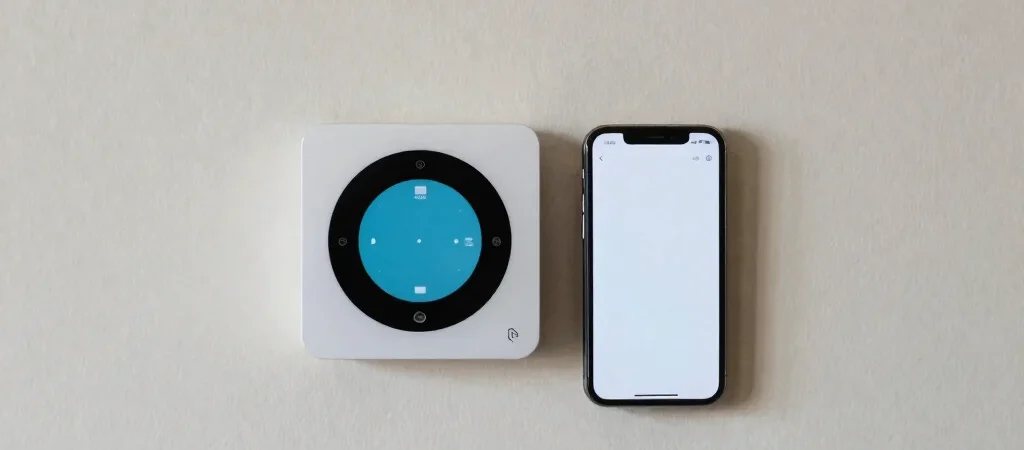
A thermostat can keep running its schedule while its app shows it offline. That usually points to a broken connection between the device, the router, and the cloud service—not necessarily a heating fault. Start by finding where that connection stops.
Check what changed first
Look for a recent router replacement, Wi-Fi name or password change, power cut, or app update. If other devices also lost internet access, troubleshoot the router before the thermostat. If only the thermostat is affected, open its app and note the exact status message before changing settings.
Check whether the thermostat is connected to the same home network you expect. Some models require a 2.4 GHz Wi-Fi network, and some have trouble with particular security settings or combined 2.4/5 GHz network names. Confirm the requirements in the device’s setup guide rather than changing router security settings at random.
Restore the connection in order
If the router or Wi-Fi credentials changed, use the thermostat app’s device or network settings to reconnect it. Menu names vary by model, but the path is usually the thermostat’s settings, followed by Wi-Fi or network setup. Enter the current network password carefully and keep the phone near the thermostat during pairing.
If the credentials are unchanged, restart the router and wait until its internet connection is stable before restarting the thermostat. Then reopen the app and check the device status. If the thermostat is on a guest network, mesh network, or separated smart-home network, check that network’s device-isolation settings; they can prevent devices from communicating as expected.
Know when to stop
Avoid factory-resetting the thermostat as an early step: a reset may erase schedules and require a full setup again. If it still cannot join Wi-Fi, record the model, the error message, and whether other devices connect successfully, then check the manufacturer’s compatibility guidance or support steps. Leave HVAC wiring alone unless the installation guide specifically directs a qualified person to inspect it.